About TI-34 Calculator Online
The TI-34 MultiView is the calculator many upper elementary and middle school classrooms use to learn fractions, percents and pre-algebra. This TI-34 calculator online gives you the same four-line screen and the same special keys, free in your browser.
The TI-34 is built for learning, not just for answers. It can simplify a fraction one step at a time, show the remainder of a division and repeat an operation so students can see a pattern. Those tools make it different from other scientific calculators.
Grades 5 to 8Fractions, decimals, percents and order of operations.
Pre-algebraExponents, roots, variables and patterns.
TeachersShow each step of simplifying on a projector.
ParentsCheck homework with the same TI-34 calculator your child uses.
TI-34 MultiView vs TI-30XS MultiView
The TI-34 calculator and the TI-30XS have the same four-line, textbook-style screen. The difference is in the extra learning tools.
| Feature | TI-34 MultiView | TI-30XS MultiView |
|---|---|---|
| Simplify fractions step by step | Yes, simp key | No |
| Division with remainder | Yes, Int÷ | No |
| Repeat an operation | Yes, op1 and op2 | No |
| Percent key | Its own % key | 2nd ( |
| sin, cos, tan and log | In 2nd menus | Their own keys |
| Table of values | No | Yes |
| Best for | Grades 5 to 8 | Middle school to high school, GED |
For high school or the GED, try our TI-30XS calculator online.
TI-34 Special Keys Explained
These keys are what make the TI-34 MultiView calculator different. Here is what each one does.
simp
Simplifies the last fraction by its smallest common factor, or by a factor you type. Press it again to keep going.
simp, then enter
Int÷
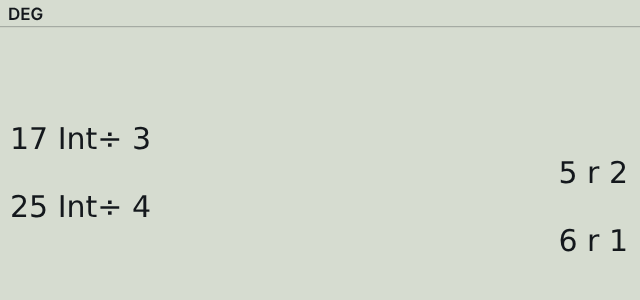
Divides two whole numbers and shows the quotient and remainder, for example 5 r 2.
2nd ÷
op1 and op2
Store an operation such as +4 or ×2, then press op1 to apply it again and again.
2nd op1 to set
%
Turns a number into a percent in a calculation. 2nd % (▸%) changes an answer into a percent.
% key
n/d and U n/d
Enter a fraction or a mixed number. 2nd U n/d switches an answer between mixed and improper form.
fractions
◂▸
Switches the last answer between a fraction and a decimal.
2nd ◂▸ → f◂▸d
trig, log and math
sin, cos, tan and log are in menus: 2nd π opens trig and 2nd √ opens log. The math key holds lcm, gcd, abs and round.
menus
How to Simplify Fractions on the TI-34
With SIMP set to MAN in the mode screen, the TI-34 does not reduce fractions for you. You simplify step by step and see the factor each time. Example: 24/36.
Set manual simplifying
Press mode, move down to SIMP, choose MAN and press enter, then clear.
Enter the fraction
Type 24, press n/d, type 36 and press enter. The answer stays 24/36.
Simplify
Press simp enter. The screen shows Fac=2 and 12/18.
Keep going
Press simp enter twice more: Fac=2 gives 6/9, then Fac=3 gives 2/3.
Use your own factor
To divide by 12 in one step, press simp, type 12 and press enter.

How to Divide with Remainders on the TI-34
Long division homework often wants the answer as a quotient and a remainder. The Int÷ key does this in one step.
Type the first number
Type 17.
Use Int÷
Press 2nd ÷, then type 3.
Read the answer
Press enter. The screen shows 5 r 2, which means 17 ÷ 3 is 5 with a remainder of 2.
How to Use op1 and op2 on the TI-34
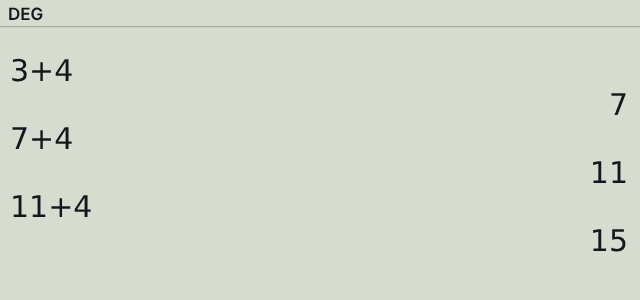
op1 and op2 save an operation so you can repeat it. They are great for skip counting, patterns and sequences. Example: start at 3 and keep adding 4.
Store the operation
Press 2nd op1, then type +4 and press enter.
Start the pattern
Type 3 and press op1. The answer is 7.
Repeat
Press op1 again for 11, and again for 15. Each press adds 4 to the last answer.
Two patterns at once: store ×2 in op2 to compare doubling with adding 4. This is a common way to explain linear and exponential growth.
How to Do Percent Problems on the TI-34
The TI-34 has its own % key, so percent problems are quick.
| Problem | Press | Answer |
|---|---|---|
| 25% of 80 | 25 % × 80 enter | 20 |
| 3/8 as a percent | 3 n/d 8 → 2nd % enter | 37.5 |
| Price after 20% off $45 | 45 − 20 % × 45 enter | 36 |
TI-34 Practice Problems
Six problems from typical middle school homework. Every answer was checked on this calculator.
Least common multiple
LCM of 12 and 18
- Press math and choose lcm(
- Type 12, press 2nd . for a comma, type 18, then )
- Press enter
36
Greatest common factor
GCF of 12 and 18
- Press math and choose gcd(
- Type 12, 2nd . (comma), 18, )
- Press enter
6
Add fractions
1/3 + 1/4
- Type 1 n/d 3, then the right arrow
- Press +, then 1 n/d 4
- Press enter
7/12
Order of operations
2 + 3 × 4²
- Type 2 + 3 × 4
- Press x²
- Press enter
50
Mixed numbers
2 1/2 + 1 3/4
- Press U n/d, type 2, right arrow, 1, down arrow, 2
- Press the right arrow, then +, and enter 1 3/4 the same way
- Press enter
4 1/4
Sine of an angle
sin(30°)
- Press 2nd π to open trig
- Choose sin( and type 30)
- Press enter
1/2
Quick answers about the TI-34
What grade is the TI-34 MultiView for?
Mostly grades 5 to 8. It covers fractions, percents, pre-algebra and basic statistics, and many students keep using it in high school.
Is the TI-34 allowed on the SAT and ACT?
Yes. It is a scientific calculator, which both tests allow. Online calculators cannot be used in the test room.
Is the TI-34 a graphing calculator?
No. It is a scientific calculator. For graphs, use our TI-84 calculator online.
How do you simplify fractions on a TI-34 calculator?
Use the simp key. Enter the fraction, press simp and enter. Repeat until the screen shows the same fraction.
What is the difference between the TI-34 and TI-30XS?
Learning tools. The TI-34 adds simp, Int÷ and op1/op2. The TI-30XS adds a table and quicker trig and log keys.
Is this TI-34 calculator online free?
Yes. It is a free TI-34 calculator online with no download or sign-up.
More calculators online
Other models students use in class.
- GraphingTI-84 Plus CEGraphing calculator for algebra, statistics and calculusUse TI-84 calculator
- GraphingTI-83 PlusThe classic graphing calculator many schools still useOpen TI-83
- GraphingTI-85Classic graphing model with equation and polynomial solversOpen TI-85
- ScientificTI-30XS MultiViewFour-line scientific calculator used on the GEDOpen TI-30XS
- ScientificTI-30XASimple one-line scientific calculatorOpen TI-30XA
Frequently asked questions
Is there a TI-34 calculator app to download?
You do not need one. This TI-34 MultiView style calculator works in your browser on computers, Chromebooks, tablets and phones.
Can I type on the TI-34 with my computer keyboard?
Yes. Numbers, + − * /, ^, %, Enter, Backspace, Esc and the arrow keys all work.
Why does my fraction not simplify?
SIMP is set to MAN in the mode screen. Press simp and enter to simplify, or set SIMP back to AUTO.
Are my op1 and op2 operations saved?
Yes. This browser remembers op1, op2, past entries, lists and settings, so they are still there next time unless you reset.
Is this TI-34 calculator online an official TI product?
No. It is an independent TI-34 MultiView style calculator for students and teachers. It is not affiliated with, sponsored by or endorsed by Texas Instruments.