About TI-30XS Calculator Online
The Texas Instruments TI-30XS MultiView scientific calculator is the one most US middle and high school students use, and it is the calculator built into the GED test. This TI-30XS calculator online gives you the same four-line screen and keys, free in your browser.
What makes the MultiView special is that it shows math the way your textbook does. Fractions sit on top of each other, exponents are raised and square roots have a real root sign. You can also see your last few problems on the screen at once.
Middle and high schoolFractions, exponents, roots and order of operations.
GED test takersPractise with the same layout as the on-screen calculator.
SAT and ACT prepGet fast with the calculator many students bring to the test.
Adults going back to schoolNo need to buy a calculator just to practise.
Which TI-30 Calculator Do You Have?
“TI-30” is a family name, not one model. If your teacher just says “TI 30 calculator”, check the name printed above the screen of your TI 30X scientific calculator.
| Model | Screen | Best for |
|---|---|---|
| TI-30XA | 1 line | Basic math in middle school, the cheapest TI-30 |
| TI-30X IIS | 2 lines | Shows the problem and the answer at the same time |
| TI-30XS MultiView | 4 lines, textbook style | Fractions, stats and tables. This page. |
| TI-30X Pro MultiView | 4 lines, textbook style | Adds equation solving and matrices |
Most worksheets that say TI 30X calculator mean the TI-30XS MultiView calculator, because it is the model schools buy most.
TI-30XS Key Guide
Think of this as a quick TI-30XS calculator reference sheet. These are the TI-30XS calculator keys that confuse new users most.
2nd
Uses the blue label above a key. For example, 2nd then x² gives √.
blue labels
n/d
Starts a stacked fraction. Type the top number, press the down arrow, then type the bottom number.
2nd n/d → mixed number
◄►
Switches the last answer between a fraction and a decimal, for example 3/4 and 0.75.
2nd ◄► → f◄►d
(−) and −
(−) makes a number negative. The − key is only for subtraction. Mixing them up causes a syntax error.
(−) for negatives
x yzt abc and sto→
Store a number with sto→, then press the variable key until the letter you want appears.
8 sto→ x
data and table
data opens lists for statistics. table makes a table of x and f(x) values.
2nd data → stat
delete and clear
delete removes one character. clear wipes the line, and pressing it again clears the screen.
2nd clear → clear var
How to Use Fractions on the TI-30XS
Fractions are the main reason teachers pick this calculator. Here is how to add 1/3 + 1/4 and 2½ + 1¾.
Type a fraction
Press n/d, type 1, press the down arrow and type 3. You can also type 1 first and then press n/d.
Leave the fraction
Press the right arrow to move out of the fraction, then press + and enter 1/4 the same way.
Get the answer
Press enter. The answer shows as the fraction 7/12.
Mixed numbers
Press 2nd n/d for a mixed number box. Type 2, press the right arrow, type 1, press the down arrow and type 2. Add 1¾ the same way. The answer is 4¼.
Switch the form
Press ◄► to see 4.25. Press 2nd ×10ⁿ (n/d◄►Un/d) to switch between 17/4 and 4¼.

How to Do Statistics on the TI-30XS
The TI-30XS finds the mean, standard deviation and five-number summary of a data set. Example test scores: 72, 85, 90, 64, 88, 95.
Open the lists
Press data. To empty old data, press data again and choose Clear ALL.
Type the numbers
In L1, type each score and press enter after it.
Run 1-Var Stats
Press 2nd data (stat), choose 1-Var Stats, keep DATA: L1 and FRQ: ONE, then select CALC and press enter.
Read the results
Scroll down for each value: n = 6, x̄ ≈ 82.33, Sx ≈ 11.84, σx ≈ 10.81, Med = 86.5.

Two lists? Put x values in L1 and y values in L2, then choose 2-Var Stats. You get the means of both lists plus a line of best fit, y = ax + b, and r.
How to Make a Table of Values on the TI-30XS
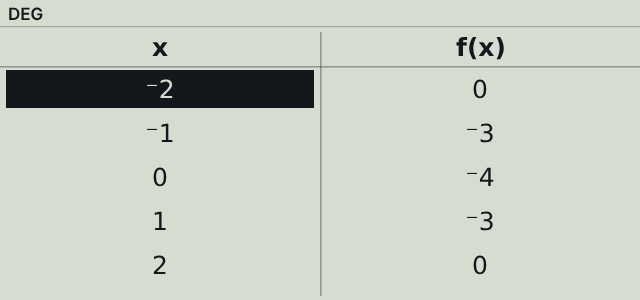
The table key is handy for graphing by hand. Example: f(x) = x² − 4 for x from −2 to 2.
Enter the function
Press table. After f(x)=, type x² − 4 using the x yzt abc key for x. Press enter.
Set it up
Type −2 for Start and press enter, type 1 for Step and press enter, then select OK.
Read the table
The y values are 0, −3, −4, −3 and 0. Use the up and down arrows to see more rows.
TI-30XS Practice Problems
Six problems from typical homework and test questions. Every answer below was checked on this calculator.
Percent of a number
Find 15% of 80
- Type 80 ×
- Type 15, then press 2nd ( for %
- Press enter
12
Scientific notation
(3 × 10⁴) × (2 × 10³)
- Type 3, press ×10ⁿ, type 4, then right arrow
- Press ×, then type 2 ×10ⁿ 3
- Press enter
60,000,000 (6 × 10⁷)
Pythagorean theorem
Legs 5 and 12. Find the hypotenuse.
- Press 2nd x² for √
- Inside the root, type 5 x² + 12 x²
- Press enter
13
Cube root of a negative
∛(−27)
- Press 2nd ^ for ˣ√
- Type 3, right arrow, then (−) 27
- Press enter
−3
Combinations
Choose 3 students out of 10
- Type 10
- Press prb and choose nCr
- Type 3 and press enter
120 ways
Trig with a right triangle
Hypotenuse 10, angle 35°. Find the opposite side.
- Check DEG at the top of the screen (mode)
- Type 10 sin(35)
- Press enter
≈ 5.736
TI-30XS on the GED, SAT and ACT
Because the TI-30XS calculator is allowed almost everywhere, practising on it pays off on test day.
| Test | Can you use a TI-30XS? |
|---|---|
| GED | Yes. An on-screen TI-30XS is built into the computer test, mostly for math and some science and social studies questions. |
| SAT | Yes, a handheld TI-30XS is allowed. The digital SAT also has a built-in graphing calculator. |
| ACT | Yes, the handheld TI-30XS is allowed. |
| AP exams | Allowed where a scientific calculator is permitted. Some AP exams need a graphing calculator. |
See the official GED test subjects page for current calculator rules. Online calculators like this one cannot be used during any of these tests.
Quick answers about the TI-30XS
Is the TI-30XS a graphing calculator?
No. It is a scientific calculator. It can make a table of values but cannot draw graphs. For graphs, use our TI-84 calculator online.
Is this the GED calculator TI-30XS?
It works the same way. The keys and screen follow the TI-30XS MultiView, so it is good practice for the GED on-screen calculator.
Can the TI-30XS do fractions?
Yes. It shows fractions and mixed numbers stacked and switches answers between fraction and decimal form.
What is the difference between the TI-30XS and the TI-30X IIS?
Screen and fractions. The TI-30XS has a four-line textbook-style screen. The TI-30X IIS has two lines and shows fractions in one line.
Is there a TI-30XS calculator app?
Not a free official one. This page works in any phone or tablet browser, so you do not need an app.
Is this TI-30XS calculator online free?
Yes. It is a free TI-30XS calculator online with no download and no sign-up.
More calculators online
Other models students use in class.
- GraphingTI-84 Plus CEGraphing calculator for algebra, statistics and calculusUse TI-84 calculator
- GraphingTI-83 PlusThe classic graphing calculator many schools still useOpen TI-83
- GraphingTI-85Older graphing model with built-in equation solversOpen TI-85
- ScientificTI-30XASimple one-line scientific calculatorOpen TI-30XA
- ScientificTI-34 MultiViewElementary and middle school calculator with fractionsOpen TI-34
Frequently asked questions
Do I need to download a TI-30XS app?
No. This TI-30XS calculator opens in your browser on computers, Chromebooks, tablets and phones, so there is no app to install.
Can I use my keyboard on the TI-30XS calculator online?
Yes. Numbers, + − * /, ^, Enter, Backspace, Esc and the arrow keys all work. The x key types the variable x.
Why does my answer show as a fraction?
Like the real MultiView, answers to fraction problems show as fractions. Press ◄► to switch to a decimal, or change Answer to DEC in the mode screen.
Will my lists and answers be saved?
Yes. Your history, lists and settings stay in your browser until you clear them or reset the calculator.
Is this the official TI-30XS MultiView from Texas Instruments?
No. It is an independent online calculator modeled on the TI-30XS MultiView. It is not affiliated with, sponsored by or endorsed by Texas Instruments.