About TI-83 Calculator Online
The TI-83 is the calculator a whole generation learned algebra and statistics on, and many classrooms still use it. This TI 83 calculator online puts that same keypad and grey screen in your browser, so you can follow a TI-83 worksheet line by line.
It copies the 1999 Plus model, the most common version of the TI-83. The menus, the order of the options and even the error messages match the handheld. It is free, it needs no download, and you do not need a ROM file like a desktop TI 83 emulator does.
Why use a TI-83 instead of a TI-84? If your teacher, textbook or old notes show TI-83 screens, using the same calculator means every menu number and every screen matches. When you need newer tools like invT, switch to our TI-84 calculator online.
The TI-83 Series at a Glance
Texas Instruments made several calculators with “83” in the name. Here is what each one is, so you know which TI-83 calculator your class means.
- 1996TI-83
The original Texas Instruments TI-83 graphing calculator. Black and white screen, no flash memory for apps.
- 1999The Plus model
Same keys plus flash memory for apps. This page follows this model.
- 2001Silver Edition
A faster version of the Plus with more memory and a see-through case.
- 2015TI-83 Premium CE
A colour model sold in France. It works like a TI-84 Plus CE.
Want the original manuals? Texas Instruments still hosts the official TI-83 and TI-83 SE guidebooks on its website.
TI-83 Keystroke Cheat Sheet
Keep this table open next to this TI-83 online. Find what you want to do, then press the keys on the right.
| I want to… | Press |
|---|---|
| Square root | 2nd x² |
| Type a negative number | (−) (not the minus key) |
| Use the last answer | 2nd (−) for Ans |
| Change a decimal to a fraction | MATH 1 ►Frac |
| Switch to degrees | MODE, choose Degree, ENTER |
| Enter a function to graph | Y=, use X,T,θ,n for x |
| Reset the graph window | ZOOM 6 ZStandard |
| Find a zero, minimum or maximum | 2nd TRACE, then 2, 3 or 4 |
| Enter data in a list | STAT 1 Edit |
| Normal and binomial probability | 2nd VARS DISTR |
| Go back to the home screen | 2nd MODE QUIT |
How to Graph a Function on the TI-83
Graphing takes only a few key presses once you know where things are. Here is the full routine, using y = x² − 2x − 3 as the example.
Clear old functions
Press Y=. If Y1 to Y4 already have equations, move to each one and press CLEAR.
Type the equation
In Y1 type X²−2X−3. Use the X,T,θ,n key for x and the x² key for the square.
Draw it
Press GRAPH. If the curve is cut off or missing, press ZOOM 6 for the standard −10 to 10 window.
Explore the curve
Press TRACE and use the left and right arrows. The x and y values of each point show at the bottom of the screen.
Find the x-intercepts
Press 2nd TRACE, then 2 for zero. This curve crosses the x-axis at x = −1 and x = 3.

Graph not showing? Check that the “=” sign next to Y1 is highlighted, and that Plot1 at the top of the Y= screen is off unless you are graphing data.
How to Use normalcdf and invNorm on the TI-83
Both live in the DISTR menu, which you open with 2nd VARS. Use normalcdf when you know the values and want a probability. Use invNorm when you know the probability and want the value.
normalcdf(lower, upper, μ, σ)
Gives the area under the normal curve between two values.
Heights have mean 64 in and SD 2.5 in. What share are taller than 68 in?
normalcdf(68,1E99,64,2.5)
≈ 0.0548, about 5.5%
1E99 means “no upper limit”. Type the E with 2nd ,. For “less than”, use −1E99 as the lower value.
invNorm(area, μ, σ)
Gives the value that has a given area to its left.
Same heights. What height is the 25th percentile?
invNorm(.25,64,2.5)
≈ 62.3 in
The TI-83 always uses the area to the left. For the top 10%, enter .90, not .10.
How to Use 1-Var Stats on the TI-83
1-Var Stats gives you the mean, standard deviation, median and quartiles of a data set on one screen. Example data: 12, 15, 18, 20, 25.
Enter the data
Press STAT 1. To empty L1, move up onto the L1 title, press CLEAR then ENTER. Type each number and press ENTER.
Run the command
Press STAT, move right to CALC, choose 1: 1-Var Stats. Type 2nd 1 for L1 and press ENTER.
Read the results
The screen lists everything below. Press the down arrow to see the five-number summary.
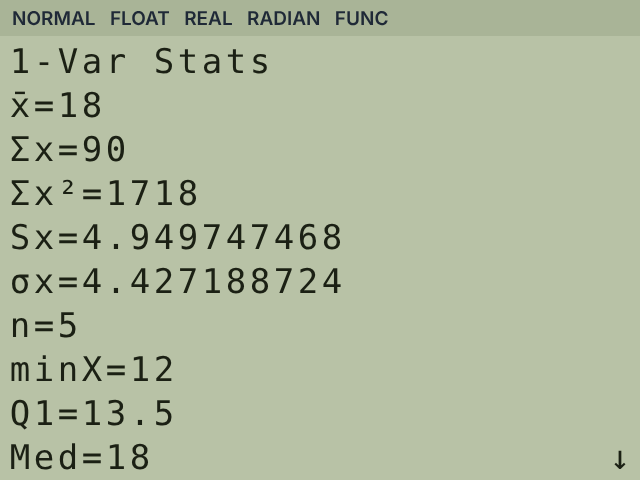
| Symbol | Meaning | Our data |
|---|---|---|
| x̄ | Mean | 18 |
| Σx | Sum of the values | 90 |
| Sx | Sample standard deviation | 4.95 |
| σx | Population standard deviation | 4.43 |
| n | Number of values | 5 |
| minX, Q1, Med, Q3, maxX | Five-number summary | 12, 13.5, 18, 22.5, 25 |
Sx or σx? Use Sx when your numbers are a sample from a bigger group, which is most homework. Use σx only when you have every member of the group. Sx divides by n − 1, so it is always a little larger.
TI-83 Practice Problems (Step-by-Step)
Six more problems that show up again and again in algebra, calculus and statistics. Every answer below was checked on this TI 83 online calculator.
Line of best fit
x: 1, 2, 3, 4, 5 · y: 2, 4, 5, 4, 5
- Press STAT, 1 and type x in L1 and y in L2
- Press STAT, move right to CALC, choose 4: LinReg(ax+b)
- Press ENTER
y = 0.6x + 2.2, r ≈ 0.775
On a real TI-83, r only shows after you run DiagnosticOn from the CATALOG (2nd 0). Here it shows straight away.
Vertex of a parabola
y = x² − 6x + 5
- Type X²−6X+5 in Y1 and press GRAPH
- Press 2nd TRACE, then 3 (minimum)
- Move left of the low point, ENTER, right of it, ENTER, then ENTER
Vertex at (3, −4)
Add fractions
1/3 + 1/4
- Type 1÷3+1÷4
- Press MATH, then 1 (►Frac)
- Press ENTER
7/12
Area under a curve
∫ x² dx from 0 to 3
- Press MATH, then 9 (fnInt()
- Type fnInt(X²,X,0,3)
- Press ENTER
9
Top 10% cut-off score
Mean 500, SD 100. Which score is the top 10%?
- Press 2nd VARS, then 3 (invNorm()
- Type invNorm(.9,500,100)
- Press ENTER
About 628
95% confidence interval
σ = 15, x̄ = 100, n = 36
- Press STAT, move right to TESTS, choose 7: ZInterval
- Choose Stats, then enter σ, x̄, n and C-Level .95
- Move to Calculate and press ENTER
(95.1, 104.9)
Common TI-83 Error Messages and Fixes
An error screen on a TI-83 calculator gives two choices: 1:Quit and 2:Goto. Pick Goto to jump to the mistake. These are the errors students see most.
| Error | What it means | How to fix it |
|---|---|---|
ERR:SYNTAX | Something is typed wrong | Check for the minus key used as a negative sign, or a missing comma |
ERR:DIVIDE BY 0 | You divided by zero | Check the bottom of the fraction |
ERR:NONREAL ANS | The answer is not a real number | Look for √ of a negative number |
ERR:DOMAIN | A value is outside what the function accepts | For example tan(90) in degree mode |
ERR:DIM MISMATCH | Two lists have different lengths | Make L1 and L2 the same size in STAT Edit |
ERR:WINDOW RANGE | Xmin is bigger than Xmax | Press ZOOM 6 to reset the window |
TI-83 vs TI-83 Plus vs TI-84 Plus
All three use the same keypad layout, which is why so many guides are written as “TI-83/84”.
| Feature | TI-83 | Plus model | TI-84 Plus |
|---|---|---|---|
| Released | 1996 | 1999 | 2004 |
| Screen | 96×64, black and white | 96×64, black and white | 96×64, black and white |
| Processor | 6 MHz | 6 MHz | 15 MHz |
| Flash memory for apps | None | 160 KB | 480 KB |
| USB port | No | No | Yes |
| invT, χ²GOF-Test, LinRegTInt | No | No | Yes |
| Allowed on SAT, ACT, AP | Yes | Yes | Yes |
Using TI-83 Steps on a TI-84 (and Back)
A TI 83/84 calculator guide works on both because the main menus are the same: Y=, CALC, STAT, DISTR and MATRX open in the same place. Only these things change.
Inverse t: invT(
Only on the TI-84. On a TI-83, read t* from a t-table or let TInterval find it for you.
TI-84 only
χ²GOF-Test and LinRegTInt
Only on the TI-84. On a TI-83, do the goodness-of-fit sum by hand with lists.
TI-84 only
Logs in any base
The TI-84 has logBASE(. On a TI-83, type log(8)/log(2) to get log base 2 of 8, which is 3.
log(x)/log(b)
Summation
The TI-84 has Σ(. On a TI-83, use sum(seq(X,X,1,100)) to add 1 to 100, which gives 5050.
sum(seq(
TI-83 Emulator, App or Online Calculator?
There are three ways to use a TI-83 without the real calculator. Here is how they compare.
| Desktop TI 83 emulator | TI 83 calculator app | This online TI-83 | |
|---|---|---|---|
| Install needed | Yes | Yes, on your phone | No |
| ROM file needed | Yes, copied from your own calculator | Depends on the app | No |
| Works on Chromebook | Usually no | Sometimes | Yes |
| Cost | Free to paid | Free to paid | Free |
Texas Instruments does not offer a free TI 83 calculator app for phones, so most apps in the stores are made by other companies. An online version is the simplest choice for homework on a school laptop.
Quick answers about the TI-83
Is the TI-83 a graphing calculator?
Yes. The TI-83 graphing calculator draws functions, parametric and polar graphs, and also does statistics and matrices.
Can the TI-83 do calculus?
Yes, with numbers. nDeriv( finds a derivative at a point and fnInt( finds a definite integral. It cannot simplify algebra like a CAS calculator.
Is the Plus model better than the original TI-83?
Slightly. It adds flash memory for apps and a few menu items. For class math they work the same.
Is there a free TI 83 calculator?
Yes. This TI-83 calculator online is free and works without an account.
How do I reset a TI-83?
2nd, MEM (+), 7, 1, 2 on the Plus model. That is Reset → All RAM → Reset. It deletes all lists and programs.
Can I take a TI-83 to the SAT or ACT?
Yes. Every handheld TI-83 model is allowed. Online calculators cannot be used in the exam room.
More calculators online
Other models students use in class.
- GraphingTI-84 Plus CEColour graphing calculator with invT and more testsUse TI-84 calculator
- GraphingTI-85Older graphing model for calculus and engineeringOpen TI-85
- ScientificTI-30XS MultiViewAllowed on the SAT and ACT, popular in middle schoolOpen TI-30XS
- ScientificTI-30XAOne-line scientific calculator for quick everyday sumsOpen TI-30XA
- ScientificTI-34 MultiViewMultiView calculator with fractions for middle schoolOpen TI-34
Frequently asked questions
Where is DISTR on the TI-83?
DISTR is the yellow label above the VARS key. Press 2nd then VARS to open it. It holds normalcdf, invNorm, binompdf, binomcdf and the other probability functions.
Do I need to download a ROM or anything else?
No. Open this page and start pressing keys. Nothing is installed on your device.
Can I type on the TI-83 calculator with my keyboard?
Yes. Numbers, + − × ÷, Enter, Backspace and the arrow keys all work, so you can type faster than clicking.
Is my TI-83 work shared with the TI-84 page?
No. Each calculator keeps its own lists, Y= functions and settings in your browser, so they never overwrite each other.
Why is an answer slightly different from my real TI-83?
Numerical tools like nDeriv( and fMin( estimate the answer, so the last digit can differ a little, for example 12.000001 instead of 12. Rounded answers match.
Is this TI-83 calculator online from Texas Instruments?
No. Texas Instruments no longer makes the TI-83. This page is an independent TI-83 style calculator and is not affiliated with, sponsored by or endorsed by Texas Instruments.