Texas Instruments releases new operating systems for the TI-84 Plus CE every so often, with new features and fixes. This guide shows you how to update a TI-84 Plus CE OS step by step, what to do before you start, and how to fix the problems that sometimes come up.
Quick answer
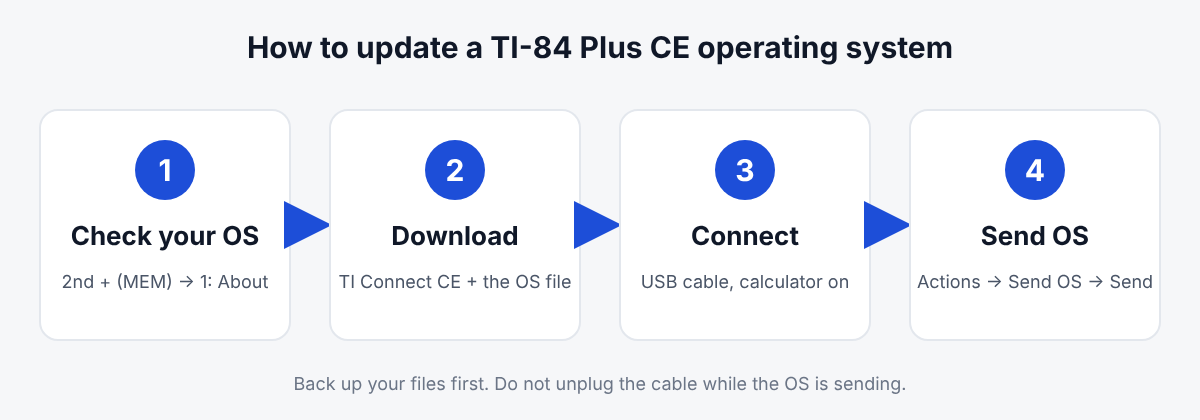
- Check your version: 2nd + (MEM), then 1: About.
- Get the tools: install TI Connect CE and download the OS file from TI.
- Send it: connect by USB, then Actions › Send OS in TI Connect CE.
- Back up first: the update clears RAM, and you cannot go back to an older OS.
How to Check Your TI-84 OS Version
Open the MEM menu
Press 2nd, then +. The blue label above the plus key is MEM.
Choose About
Press 1 or ENTER. The OS version shows below the calculator name, for example 5.8.5.
Compare it with the newest version on TI’s site. As of November 2026, these are the latest versions:
| Calculator | Latest OS | Software to use |
|---|---|---|
| TI-84 Plus CE | 5.8.5 | TI Connect CE |
| TI-84 Plus CE Python | 5.8.5 | TI Connect CE |
| TI-84 Plus and Silver Edition | 2.55MP | TI Connect CE |
Download the file for your exact model from the TI-84 Plus CE operating system page. The CE and the CE Python use different OS files.
Before You Update Your TI-84 Plus CE
Back up your filesThe update clears RAM. Send lists, programs and notes you want to keep to your computer, or archive them.
Charge the batteryStart with a well-charged calculator so it does not die halfway through.
Use a data cableThe CE connects with a USB mini-B cable. A charge-only cable will not show up on the computer.
Connect one calculatorIf several calculators are plugged in, unplug all but the one you are updating.
How to Update a TI-84 Plus CE With TI Connect CE
This is TI’s recommended method on Windows and Mac.
Install TI Connect CE
Download the latest TI Connect CE from TI’s website and install it.
Download the OS file
Save the OS file for your calculator model somewhere easy to find, like your desktop.
Connect the calculator
Plug the USB cable into the calculator and the computer, then turn the calculator on. It should appear under Connected Calculators.
Choose Send OS
Open the Actions menu and choose Send OS. Newer versions call it Send OS/Bundles to Calculators.
Pick the file and send
Select the OS file, click Open, make sure your calculator is ticked and click Send. Do not unplug the cable until the transfer finishes.
How to Update a TI-84 on a Chromebook
On a Chromebook, use the TI Connect CE App for Chrome OS. The steps are short:
Open the menu
Click the Menu icon in the app.
Send the OS
Choose Send OS to Calculator, pick the OS file, click Open and then Send.
Note for Chromebooks The Chrome OS app does not accept the CE bundle file. Use the plain OS file, which ends in .8eu.
Updating the OS and Apps Together With a Bundle
TI also offers a bundle with the OS and all the CE apps in one file. Apps need to match your OS version, so the bundle is the easiest way to keep everything in step.
Optional: delete old apps
TI suggests deleting the apps in Calculator Explorer first. The update is faster that way.
faster
Drag and drop
Drag the bundle file onto your calculator in the calculator list. When you see + Copy, let go and click Send.
+ Copy
What Happens After the Update
When the transfer ends, the calculator restarts and shows RAM Cleared. Anything that was in RAM, such as lists, Y= equations and unarchived programs, is gone. Archived files stay.
Press 2nd + and 1 again to confirm the new version number. Then send your backed-up files back from TI Connect CE. RAM Cleared works the same way as a RAM reset, which our TI-84 reset guide explains in detail.
TI-84 OS Update Problems and Fixes
| Problem | What to try |
|---|---|
| Calculator does not show in TI Connect CE | Turn the calculator on, try another USB port and use a data cable, not a charge-only one |
| Transfer stopped halfway | Reconnect and send the OS again. The calculator can still receive an OS even if it will not start normally |
| Apps are missing or will not open | Send the matching apps or the full bundle for your new OS |
| Old games or programs stopped working | Programs that use ASM do not run on OS 5.6 and newer, and the OS cannot be rolled back |
| Wrong file error | Check that the file is for your exact model, CE or CE Python |
Can You Downgrade a TI-84 Plus CE OS?
No. TI states that once you update a TI-84 Plus CE or CE Python, you cannot go back to an older OS. Since OS 5.6 in 2020, TI has also removed ASM, the low-level programming some games relied on. If you depend on an older program, check that it works on the new version before you update.
Our TI-84 calculator never needs an OS update. Open it in your browser and it is always ready, even while your handheld is updating.
Frequently asked questions
What is the latest TI-84 Plus CE OS version?
As of November 2026, TI lists version 5.8.5 for both the TI-84 Plus CE and the TI-84 Plus CE Python. Check TI’s download page for newer releases.
Will updating my TI-84 delete my programs?
Programs and lists in RAM are erased. Programs in Archive are kept. Back up or archive anything important before you start.
Can I update a TI-84 Plus CE without a computer?
Yes. TI explains a way to send the OS from another, already-updated TI-84 Plus CE using a USB unit-to-unit cable.
Why can’t I run games after updating my TI-84?
Many games use ASM, which TI removed in OS 5.6. They will not run on newer versions, and the update cannot be undone.
Do I have to update my TI-84 Plus CE?
No. The calculator works fine on an older OS. Update if you want new features, need apps that require it, or your teacher asks you to.