Turning off a TI-84 Plus CE takes two keys, and clearing or resetting it takes a few more. This guide shows every option step by step, from clearing one list to wiping all memory, and tells you exactly what each reset deletes.
Quick answer
- Turn off: press 2nd then ON.
- Clear the home screen: press CLEAR.
- Reset RAM: 2nd + (MEM) → 7: Reset → RAM → 1: All RAM → 2: Reset.
- Reset everything: 2nd + → 7: Reset → ALL → 1: All Memory → 2: Reset.
How to Turn Off a TI-84 Plus CE
There is no OFF key on a TI-84. The blue OFF label above the ON key is a second function, so you reach it with 2nd.
Press 2nd
Press the 2nd key in the top left corner. A small arrow appears in the corner of the screen.
Press ON
Press ON in the bottom left corner. The screen goes dark and the calculator is off.
Your work is safe. Turning the calculator off does not delete anything. When you press ON again, you return to the screen you left.
Auto power off: if you leave a TI-84 Plus CE alone for about five minutes, it turns itself off to save the battery. Nothing is lost.
How to Clear the Screen, Lists and Functions on a TI-84
Most of the time you do not need a full reset. You only need to clear one thing. Use this table to clear exactly what you want and keep the rest.
| To clear | Press |
|---|---|
| The line you are typing | CLEAR once |
| The whole home screen | CLEAR on an empty line |
| One list, such as L1 | STAT → 4: ClrList, then 2nd 1 and ENTER |
| All lists at once | 2nd + (MEM) → 4: ClrAllLists → ENTER |
| A function in Y= | Y=, move to the function, CLEAR |
| Drawings on a graph | 2nd PRGM (DRAW) → 1: ClrDraw → ENTER |
| Saved past entries | 2nd + (MEM) → 3: Clear Entries → ENTER |
How to Clear Memory on a TI-84 Without Losing Programs
Before a RAM reset, move the programs you want to keep into archive memory. Archived files survive a RAM reset.
Open Mem Management
Press 2nd + (MEM), then 2 for Mem Management/Delete.
Find your programs
Choose Prgm. A list of your programs appears.
Archive them
Move to a program and press ENTER. An asterisk (*) next to the name means it is archived.
Reset RAM
Now follow the RAM reset steps below. Your archived programs stay safe.
How to Reset RAM on a TI-84 (Clear Memory)
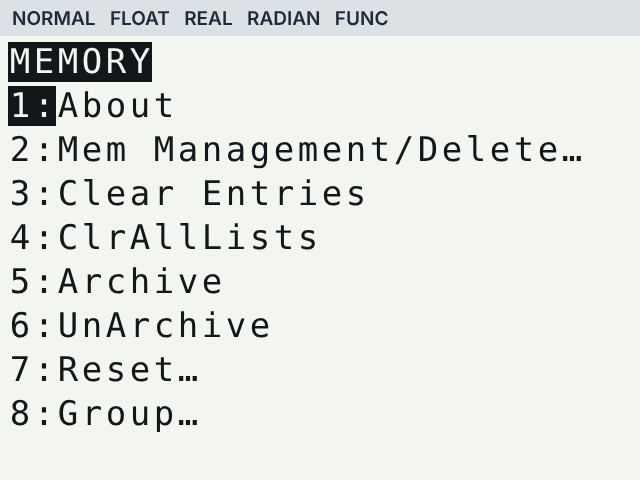
A RAM reset is what most people mean by “clear the memory”. It deletes your variables, lists, functions and settings, but keeps apps and archived programs.
Open the MEM menu
Press 2nd then +. The MEMORY menu opens.
Choose Reset
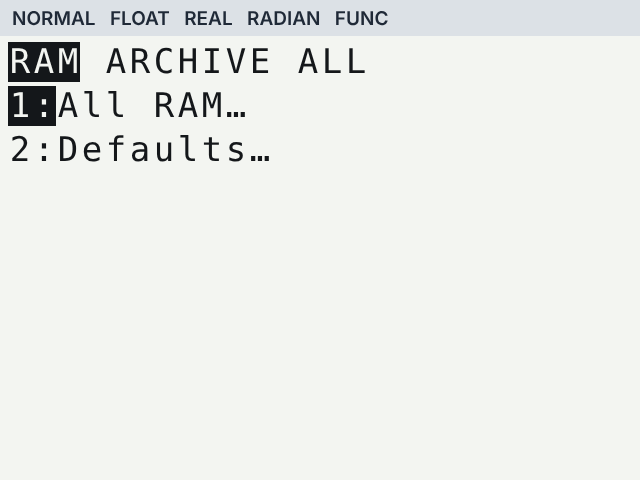
Press 7 for Reset. You see three tabs: RAM, ARCHIVE and ALL.
Choose All RAM
Stay on the RAM tab and press 1 for All RAM.
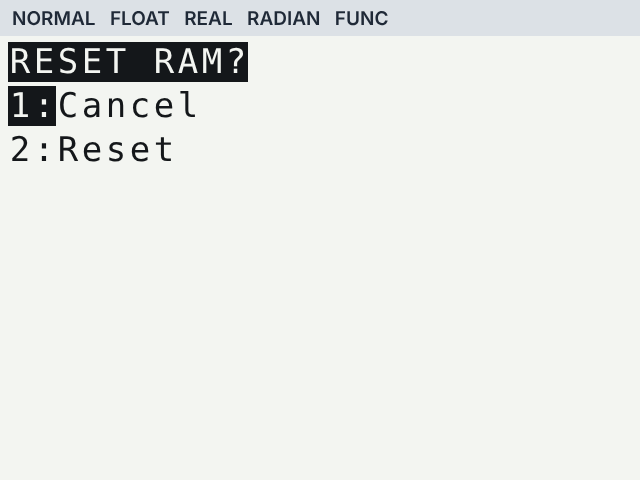
Confirm
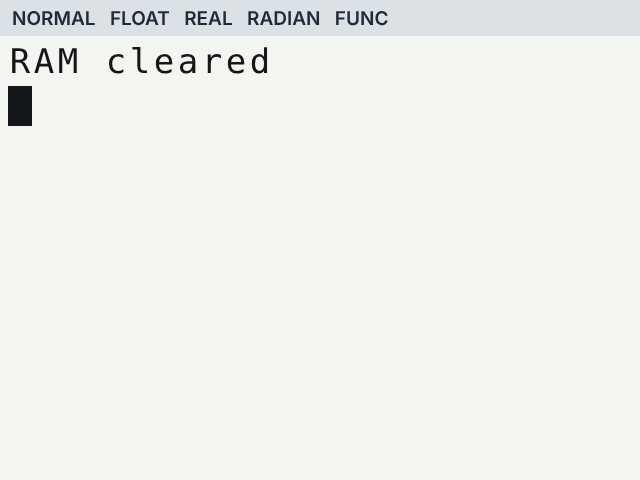
Press 2 for Reset. The screen shows RAM cleared.
Only want default settings back? On the RAM tab, choose 2: Defaults… instead. It resets MODE, WINDOW and FORMAT settings but keeps your lists and programs.
How to Reset All Memory on a TI-84 (Factory Reset)
All Memory is the strongest reset. Use it when you want the calculator exactly as it came from the box, for example before you sell it.
Open Reset
Press 2nd + (MEM), then 7.
Go to the ALL tab
Press the right arrow twice to reach ALL.
Choose All Memory
Press 1 for All Memory.
Confirm
Press 2 for Reset. The screen shows Mem cleared.
This also deletes archived programs and apps. You can put apps back later with the free TI Connect CE software and a USB cable.
RAM Reset vs All Memory Reset: What Gets Deleted
| Defaults | All RAM | All Memory | |
|---|---|---|---|
| MODE, WINDOW, FORMAT settings | Reset | Reset | Reset |
| Lists, variables, Y= functions | Kept | Deleted | Deleted |
| Programs in RAM | Kept | Deleted | Deleted |
| Archived programs | Kept | Kept | Deleted |
| Apps | Kept | Kept | Deleted |
| Best for | Fixing odd settings | Clearing memory, fixing errors | Factory reset before selling |
What to Do If Your TI-84 Is Frozen
If the screen is stuck and no key works, the MEM menu will not open. Try these in order.
Press ON
If a program is running, ON stops it. Choose 1: Quit if a menu appears.
first try
Use the reset button
The TI-84 Plus CE has a small reset hole on the back. Press it gently with a paper clip. This works like a RAM reset.
TI-84 Plus CE
Remove a battery
On older TI-84 Plus models with AAA batteries, take out one battery for a few seconds, then put it back.
TI-84 Plus
TI-84 Screen Blank After Turning On?
If the TI-84 turns on but the screen looks empty, the brightness may be too low. Press 2nd, then hold the up arrow to make the screen brighter. Press 2nd and the down arrow to make it darker. If nothing shows at all, the battery is probably empty.
When Not to Reset Your TI-84
Programs you needA RAM reset deletes programs that are not archived. Back them up with TI Connect CE first.
Right before a testSome exams want memory cleared, but many use Press-to-Test mode instead, which locks programs without deleting them.
Just one wrong settingIf only the angle mode or window is wrong, change it in MODE or WINDOW, or use Defaults.
Wrong answersCheck radian or degree mode and parentheses first. A reset rarely fixes a typing mistake.
Try the Reset Steps on Our Online TI-84
Our TI-84 calculator online has the same MEM menu, so you can practise these steps without risking anything on your real calculator. Press 2nd then + to open it.
Frequently asked questions
Does turning off a TI-84 delete my work?
No. 2nd ON only turns the screen off. Your lists, functions and programs are still there when you turn it back on.
How do I clear the memory on a TI-84 without losing programs?
Archive the programs first in MEM → 2: Mem Management/Delete, as shown above, then reset RAM. Archived programs are kept.
Does a RAM reset delete apps?
No. Apps are stored in archive memory and survive a RAM reset. Only All Memory deletes them.
Why does my TI-84 say RAM cleared when I turn it on?
The calculator lost power or reset itself, often because of a dead battery. Charge it or replace the batteries.
Is the reset the same on a TI-83 Plus?
Yes. The TI-83 Plus uses the same 2nd + (MEM) → Reset menu.