A TI-84 looks complicated the first time you pick it up, but you only need a handful of keys to get started. This beginner guide shows you how to use a TI-84 calculator from the moment you turn it on: what each part of the keyboard does, how to set it up and how to avoid the mistakes most new users make.
Quick answer
- Turn on: press ON. Turn off with 2nd ON.
- Calculate: type on the home screen and press ENTER.
- Blue and green labels: press 2nd for blue, ALPHA for green.
- Get back to the home screen: 2nd MODE (QUIT).
Turn On Your TI-84 and Set the Screen
Press ON
The ON key is in the bottom left corner. You see the home screen with a blinking cursor.
Adjust the brightness
Press 2nd, then press the up arrow to make the screen brighter or the down arrow to make it darker.
Check the status bar
On a TI-84 Plus CE, the top line shows the current settings, such as NORMAL FLOAT AUTO REAL RADIAN. Glance at it before every test.
When you are done, press 2nd ON to turn it off. Nothing is deleted. Our guide on turning off and resetting a TI-84 covers clearing memory too.
The TI-84 Keyboard Explained
Learning how to use a TI-84 starts with the keyboard. The keys are grouped by job, and once you know the groups, finding a key gets much easier.
| Area | Keys | What they do |
|---|---|---|
| Top row | Y= WINDOW ZOOM TRACE GRAPH | Everything for graphing, right under the screen |
| Control keys | 2nd MODE DEL ALPHA | Second functions, settings, deleting and letters |
| Arrow pad | ▲ ▼ ◀ ▶ | Move the cursor and scroll through menus |
| Menu keys | MATH APPS PRGM VARS STAT | Open menus with more functions |
| Function keys | SIN COS TAN LOG LN x² ^ | Trig, logs, squares and powers |
| Number pad | 0–9, . (−) and + − × ÷ | Numbers and arithmetic |
| Bottom right | ENTER | Runs a calculation or picks a menu item |
The X,T,θ,n key next to ALPHA types the variable X. You will use it every time you graph.
How to Use the 2nd and ALPHA Keys
Most keys do three jobs. The white label is the main function, the blue label above it needs 2nd, and the green label needs ALPHA. Press 2nd or ALPHA first, let go, then press the key.
| Press | You get |
|---|---|
| 2nd ^ | π |
| 2nd LN | eˣ |
| 2nd (−) | Ans, your last answer |
| 2nd ENTER | Your last entry, ready to edit |
| ALPHA MATH | The letter A |
| 2nd ALPHA | A-LOCK, so you can type several letters in a row |
Pressed 2nd by mistake? Press it again to cancel. The arrow cursor goes back to a normal block.
TI-84 MODE Settings for Beginners
Press MODE to see the settings screen. Use the arrows to move and ENTER to choose. These are the rows that matter most when you start:
NORMAL SCI ENG
How answers are shown. Keep NORMAL unless your teacher asks for scientific notation.
NORMAL
FLOAT 0–9
Decimal places. FLOAT shows as many as needed. Pick 2 to round money answers.
FLOAT
RADIAN DEGREE
The angle unit for SIN, COS and TAN. Geometry and most trig homework use DEGREE.
check often
FUNCTION PARAMETRIC POLAR SEQ
The type of graph. Keep FUNCTION for y = equations.
FUNCTION
Press 2nd MODE to leave the screen. Your changes are saved right away.
Home Screen Basics: Calculate, Use Ans and Store Values
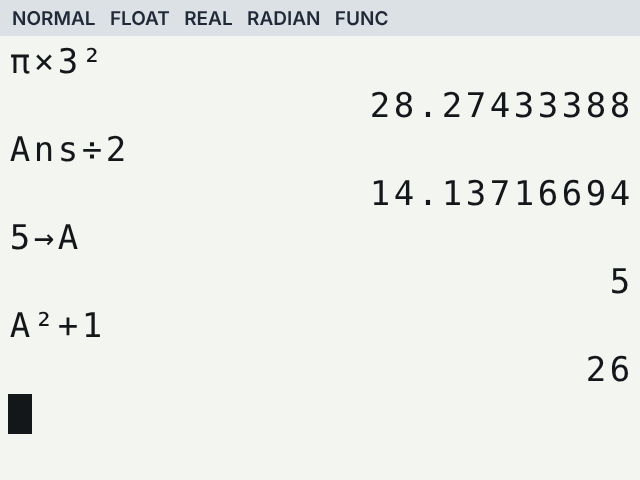
The home screen is where you do normal calculations. Type the whole expression first, then press ENTER. Your input shows on the left and the answer on the right.
Use π
Type 2nd ^ × 3 x² and press ENTER to find the area of a circle with radius 3. The answer is 28.27433388.
Reuse the answer
Press ÷ 2 ENTER. The calculator adds Ans in front for you, so you get half of the last answer.
Store a value
Type 5, press STO→, then ALPHA MATH and ENTER. Now A equals 5.
Use the stored value
Type ALPHA MATH x² + 1 and press ENTER. The answer is 26.
How TI-84 Menus Work
Keys like MATH, STAT and VARS open menus. Every menu works the same way:
Pick an itemPress its number, or move to it with the arrows and press ENTER.
Change tabsUse the left and right arrows to switch between tabs along the top.
ScrollA small arrow next to the last item means there are more below.
LeavePress CLEAR to close a menu, or 2nd MODE to go straight to the home screen.
Make Your First Graph on a TI-84
Open Y=
Press Y=. Clear any old equation in Y1 with CLEAR.
Type the equation
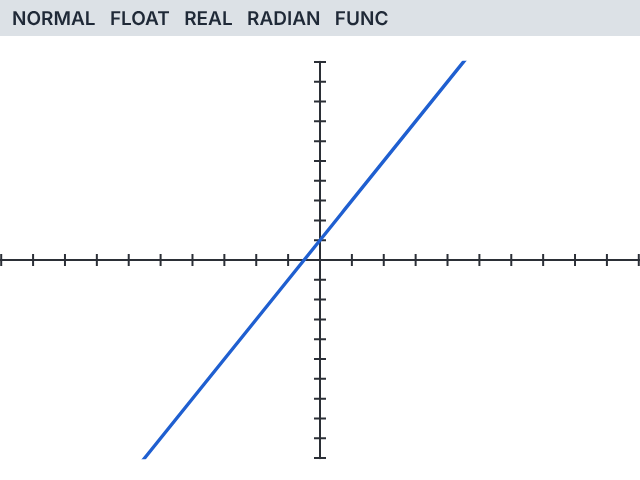
For y = 2x + 1, press 2 X,T,θ,n + 1.
Graph it
Press ZOOM then 6 for the standard window from −10 to 10. The line appears.
Common TI-84 Mistakes Beginners Make
| Mistake | What happens | Fix |
|---|---|---|
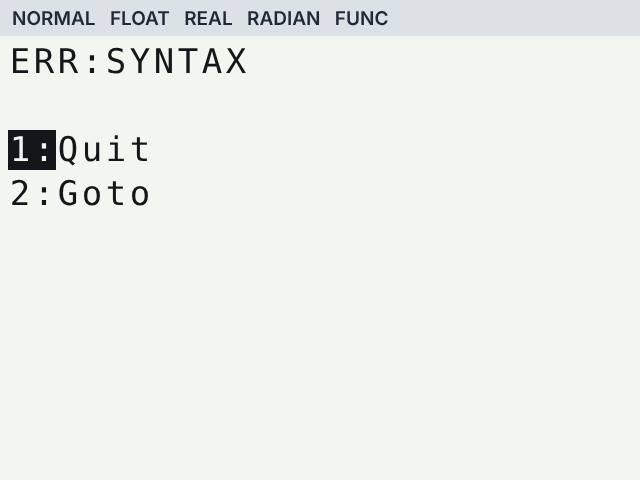
| Using − for a negative number, as in 4 × −2 | ERR:SYNTAX | Use the (−) key for negatives |
| Wrong angle mode | sin(30) gives −0.988 instead of 0.5 | Switch to DEGREE in MODE |
| Missing parentheses, as in 1÷2×3 | Gives 1.5, not 1/6 | Type 1÷(2×3) |
| Old equations left in Y= | Extra lines on your graph | Clear them or turn them off |
| Graph not showing | Blank screen or ERR:WINDOW RANGE | Press ZOOM 6, or see TI-84 not graphing fixes |
Practise These Steps on a Free Online TI-84
No calculator with you? Our TI-84 calculator online uses the same keys and menus, so you can try every step in this guide in your browser.
Frequently asked questions
How do I get back to the home screen on a TI-84?
Press 2nd MODE. The blue word above MODE is QUIT, and it works from almost any screen.
What does the 2nd key do on a TI-84?
It unlocks the blue function printed above each key. For example, 2nd x² gives the square root symbol.
How do I type a fraction on a TI-84 Plus CE?
Press ALPHA Y= to open the shortcut menu, then choose n/d. You can also type a division and use MATH 1 (►Frac) to show the answer as a fraction.
How do I type letters on a TI-84?
Press ALPHA, then the key with the green letter you want. Press 2nd ALPHA to lock letters on for a whole word.
Is the TI-84 Plus the same to use as the TI-84 Plus CE?
Yes. The keys and menus are the same. The CE adds a color screen and a status bar at the top.