A TI-84 cannot rearrange an inequality for you, but it can show you exactly where an inequality is true. This guide shows how to solve inequalities on a TI-84 with two easy methods, how to handle quadratic inequalities, and how to turn what you see on the screen into a proper answer.
Quick answer
- Method 1: type the whole inequality in Y= using the TEST menu (2nd MATH). The graph sits at 1 wherever it is true.
- Method 2: graph each side as Y1 and Y2, find where they cross with 2nd TRACE 5, and see which graph is on top.
- Check: the table shows 1 for true and 0 for false.
Which Method Should You Use?
| Method 1: TEST menu | Method 2: Graph both sides | |
|---|---|---|
| Best for | Quick answers, linear and quadratic inequalities | Exact boundary points, messy equations |
| What you see | A line at height 1 where the inequality is true | Two graphs and the points where they cross |
| Exact endpoints? | Read from the table | Yes, from the intersect tool |
| Keys | 2nd MATH | 2nd TRACE 5 |
Method 1: Solve an Inequality With the TEST Menu
The TI-84 treats an inequality as a true or false question. It gives 1 when the statement is true and 0 when it is false. Graph that, and the true part of the number line lifts up to y = 1. Example: solve 2x + 3 > 7.
Open Y=
Press Y= and clear Y1. Type 2 X,T,θ,n + 3.
Insert the symbol
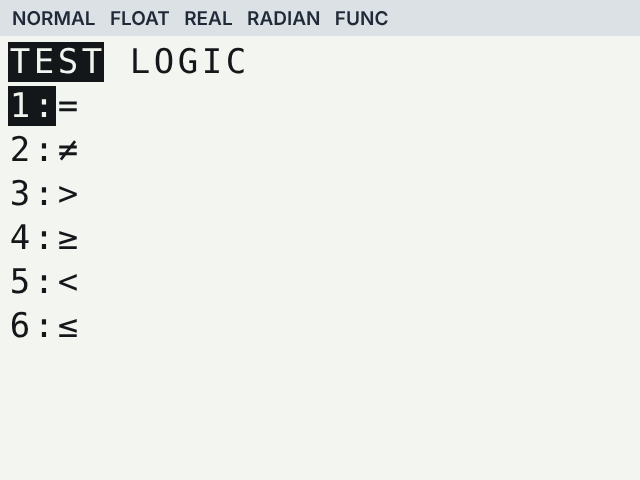
Press 2nd MATH to open TEST, then press 3 for >. Type 7. Y1 now reads 2X+3>7.
Graph it
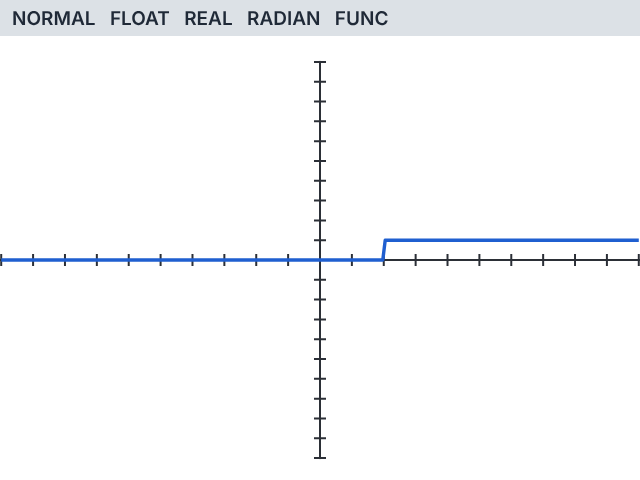
Press ZOOM 6. The graph is flat at 0, then jumps up to 1 at x = 2 and stays there.
Read the answer
The graph is at 1 for every x to the right of 2, so the solution is x > 2.
Check the boundary in the table
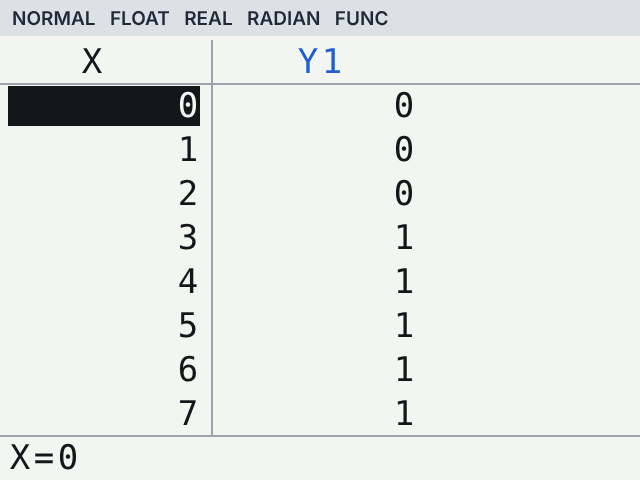
Press 2nd GRAPH for the table. At x = 2 the value is 0, because 2(2) + 3 = 7 is not greater than 7. From x = 3 on it is 1. That tells you the endpoint is not included, so you use > and an open circle, not ≥.
Solving Quadratic Inequalities on a TI-84
The same method works for x² − 4 < 0, and here the calculator saves real time, because the answer is an interval.
Type it in Y1
Enter X,T,θ,n x² − 4, then 2nd MATH 5 for <, then 0.
Graph
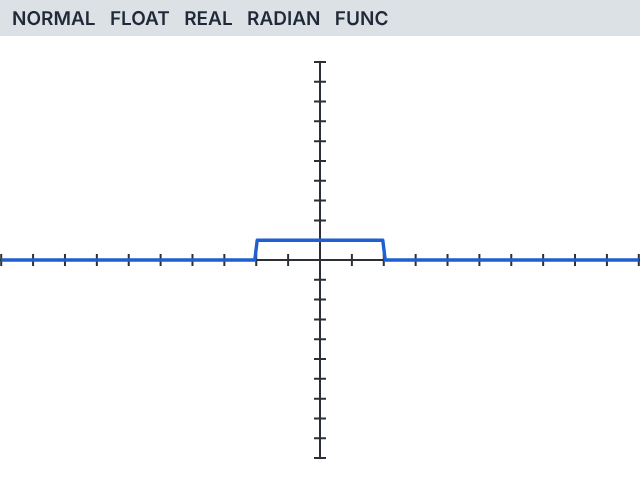
Press ZOOM 6. The graph lifts to 1 only between x = −2 and x = 2.
Write the interval
The solution is −2 < x < 2, or (−2, 2) in interval notation.
If the boundary is not a whole number, the table will not show it exactly. Use Method 2 to get the exact endpoint.
Method 2: Graph Both Sides and Find the Intersection
Put each side of the inequality in its own equation. The answer is wherever the left side is above or below the right side. Example: solve x² − 4 < x + 2.
Enter both sides
Press Y=. Type X²−4 in Y1 and X+2 in Y2.
Graph
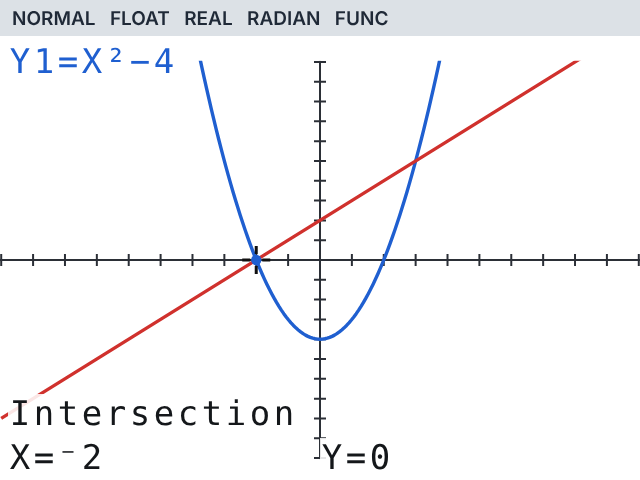
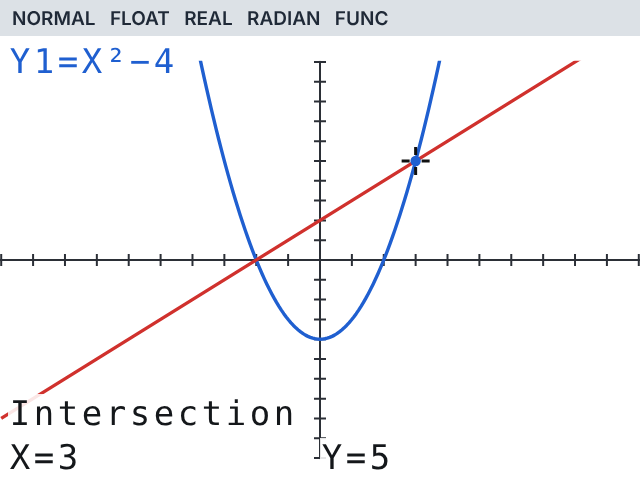
Press ZOOM 6. You see a parabola and a line crossing twice.
Find the left crossing
Press 2nd TRACE 5 (intersect). Press ENTER for the first curve and again for the second curve. Move the cursor near the left crossing and press ENTER. It shows x = −2.
Find the right crossing
Repeat, this time moving near the right crossing. It shows x = 3.
Pick the right part
We want Y1 < Y2, so look where the parabola is below the line: between the two crossings. The answer is −2 < x < 3.
How to Write the Answer From the Screen
| Symbol | Endpoint | Number line | Interval |
|---|---|---|---|
| > or < | Not included | Open circle | Round bracket ( ) |
| ≥ or ≤ | Included | Closed circle | Square bracket [ ] |
So x > 2 becomes (2, ∞), and −2 ≤ x ≤ 3 becomes [−2, 3]. The TI-84 shows where the inequality is true, but deciding open or closed is up to you, based on the symbol.
Shading Inequalities Like y > 2x + 1
Inequalities with both x and y are graphed as shaded regions, not solved for x. The TI-84 Plus CE gives you two ways to do it:
Line style shadingOn the Y= screen, move left of Y1 to the line-style icon and press ENTER until it shows shade above or shade below.
Inequality Graphing appOpen APPS and choose Inequalz. On the Y= screen you can then change = to <, ≤, > or ≥ and the app shades for you.
Common Mistakes When Solving Inequalities on a TI-84
| Mistake | Fix |
|---|---|
| Looking for a > key on the keypad | There is none. Use 2nd MATH (TEST) for >, <, ≥ and ≤ |
| Graph looks like a flat line at 0 | The true part is outside the window. Press ZOOM 0 or widen Xmin and Xmax |
| Endpoint looks wrong | Check the boundary value in the table, or use intersect for decimals |
| Answer has the wrong part of the graph | For Y1 < Y2 you want Y1 below Y2. For Y1 > Y2 you want it above |
If nothing shows up at all, our guide on TI-84 not graphing problems covers every fix.
Practise Solving Inequalities Online
Both methods in this guide work on our free TI-84 calculator online. Type the examples above, then try your own homework problems.
Frequently asked questions
Can a TI-84 solve inequalities?
It does not rearrange them like a math app, but it shows exactly where an inequality is true, either as a graph that rises to 1 or as two crossing graphs. You read the solution from that.
Where are the inequality symbols on a TI-84?
Press 2nd MATH to open the TEST menu. It has =, ≠, >, ≥, < and ≤ as items 1 to 6.
Why does my TI-84 show 1 and 0 for an inequality?
The calculator treats an inequality as a true or false test. It returns 1 when the statement is true and 0 when it is false.
How do I solve a quadratic inequality on a TI-84?
Type it in Y1 with the TEST menu, for example X²−4<0, and graph. The graph rises to 1 over the interval that solves it. Use intersect if you need exact decimal endpoints.
How do I shade an inequality on a TI-84 Plus CE?
Change the line style next to Y1 to shade above or below, or open the Inequalz app from APPS and pick the inequality symbol on the Y= screen.