The TI-30XS MultiView is the scientific calculator most students meet in middle school, high school and on the GED. This guide shows you how to use the TI-30XS calculator from day one: power, the four-line screen, MODE settings, everyday math and how to fix or reset things when they go wrong.
Quick answer
- Turn on: on. Turn off: 2nd on.
- Calculate: type the whole problem, then press enter.
- Reuse an old entry: press the up arrow, then enter.
- Back to the home screen: 2nd mode (quit).
- Reset: press on and clear at the same time.
How to Turn the TI-30XS On and Off
Turn it on
Press on in the bottom left corner. Your last settings and history come back.
Turn it off
Press 2nd, then on. The screen clears, but your history, settings and stored values stay in memory.
Let it sleep
If you do not press a key for about 5 minutes, the TI-30XS turns itself off to save power. Press on to wake it.
Screen too light or too dark? Press and release 2nd, then press + to make it darker or − to make it lighter. The TI-30XS MultiView runs on a solar panel with a backup battery, so it works in normal classroom light.
Using the MultiView Screen and History
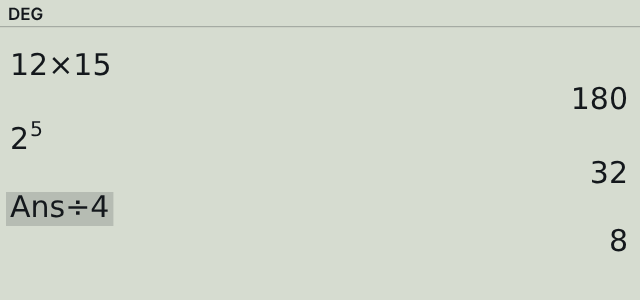
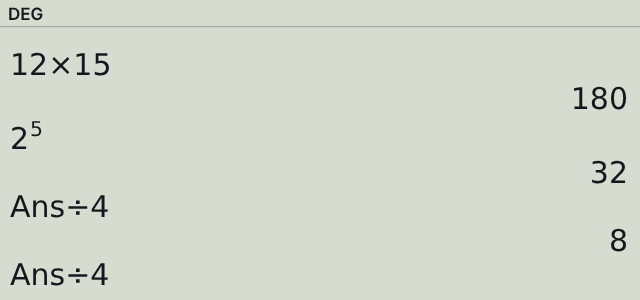
MultiView means you see up to four lines at once: your earlier problems on the left and their answers on the right. That history is one of the most useful parts of the TI-30XS.
Scroll backPress the up arrow to move through earlier entries and answers.
Reuse an entryHighlight it and press enter to paste it on the bottom line.
Edit and run againChange one number in the pasted entry and press enter.
Use the last answerStart with an operator like ÷ and the TI-30XS adds Ans for you.
TI-30XS MODE Settings Explained
Press mode, move with the arrows and press enter to choose. Press 2nd mode to leave.
DEG RAD GRAD
The angle unit. Use DEG for geometry and right-triangle trig, RAD for precalculus work in radians.
DEG
NORM SCI ENG
How answers look. NORM is normal numbers, SCI is scientific notation and ENG uses powers of 10 in steps of 3.
NORM
FLOAT 0–9
How many digits after the decimal point. FLOAT lets the calculator decide, while 2 rounds every answer to cents.
FLOAT
CLASSIC MATHPRINT
How problems appear. MATHPRINT shows stacked fractions and real exponents like a textbook. CLASSIC shows everything on one line.
MATHPRINT
Everyday Calculations on the TI-30XS
| To do this | Press | Answer |
|---|---|---|
| Order of operations | 3 + 4 × 2 enter | 11 |
| Use parentheses | ( 3 + 4 ) × 2 enter | 14 |
| A power | 2 ^ 5 enter | 32 |
| A square root | 2nd x² 81 enter | 9 |
| A negative number | (−) 6 + 10 enter | 4 |
| Last answer | 2nd (−) | Ans |
When an answer is a fraction, a square root or uses π, press the toggle key ◄► to switch between the exact form and a decimal. For example, the area of a circle with radius 5 can show as 25π or as 78.53981634.
Fix Mistakes Without Starting Over
Move the cursor
Use the left and right arrows to reach the wrong part of the entry.
Delete or insert
Press delete to remove the character at the cursor. Press 2nd delete to switch to insert and add something new.
Clear the line
Press clear once to erase the entry line. Press it again to clear the screen.
Get past an error
If you see a message like SYNTAX ERROR, press clear, then fix the entry. Using − instead of (−) for a negative is the most common cause.
How to Reset a TI-30XS MultiView
A reset puts every setting back to the default. It also erases stored variables, history, statistics data and Ans, so only do it when the calculator acts strangely or before a test.
Full reset
Press on and clear at the same time, then let go.
on + clear
Clear only the variables
Press 2nd clear to clear x, y, z, t, a, b and c without touching your settings.
clear var
Fractions, Statistics and Tables
Once the basics feel easy, these are the next TI-30XS skills to learn. Each one has a full step-by-step section on our TI-30XS page:
Have a TI-30XA Instead?
The TI-30XA is an older model with a one-line screen and no MultiView history. Fractions use the a b/c key and there is no MODE menu. Our TI-30XA calculator online shows how its keys work.
Practise on a Free Online TI-30XS
Try every step in this guide on our TI-30XS calculator online. It has the same MultiView screen and history, so the key presses carry straight over to your handheld.
Frequently asked questions
How do I turn off a TI-30XS calculator?
Press 2nd, then on. It also turns itself off after about 5 minutes without a key press.
How do I reset a TI-30XS MultiView?
Press on and clear at the same time. This restores the default settings and erases variables, history and stats data.
How do I switch the TI-30XS from MathPrint to Classic?
Press mode, move down to the CLASSIC MATHPRINT row, highlight CLASSIC and press enter. Then press 2nd mode to leave.
How do I see my earlier answers on a TI-30XS?
Press the up arrow. Each press moves one entry back through the history, and enter pastes the highlighted entry on the bottom line.
Does the TI-30XS need batteries?
The TI-30XS MultiView uses a solar panel plus a backup battery, so it keeps working even in dim light.