Your worksheet says f(x) = x² − 3x + 2, find f(4). You could plug it in by hand, or let the calculator do it in seconds. This guide shows how to evaluate a function on a TI-84 three different ways, so you can pick the one that fits the problem.
Quick answer
- Home screen: put f(x) in Y1, then type Y1(4) using VARS ▶ 1 1 and press ENTER.
- Table: set TblStart to 4 in 2nd WINDOW, then open the table with 2nd GRAPH.
- Graph: press 2nd TRACE 1 (value), type 4 and press ENTER.
First, Enter the Function in Y1
All three ways start the same. Press Y=, clear Y1 and type the function using X,T,θ,n for x. For our example, enter X²−3X+2. Then press 2nd MODE to go back to the home screen.
Think of Y1 as f(x). Whatever you type in Y1 becomes a function you can call by name, just like f(4) on paper.
Way 1: Evaluate a Function on the Home Screen With Y1( )
This is the fastest way to evaluate a function on a TI-84, and it works for any x, including negatives and decimals.
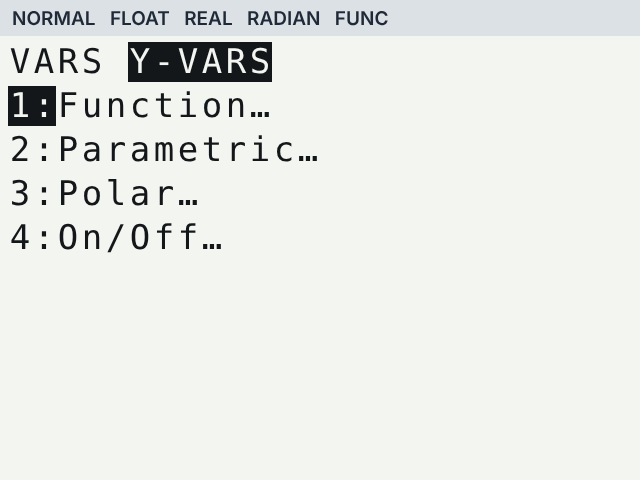
Open Y-VARS
Press VARS, then the right arrow to the Y-VARS tab.
Choose Y1
Press 1 for Function…, then 1 for Y1. Y1 is pasted on the home screen.
Add the input
Type ( 4 ) so the line reads Y1(4).
Evaluate
Press ENTER. The answer is 6, so f(4) = 6.
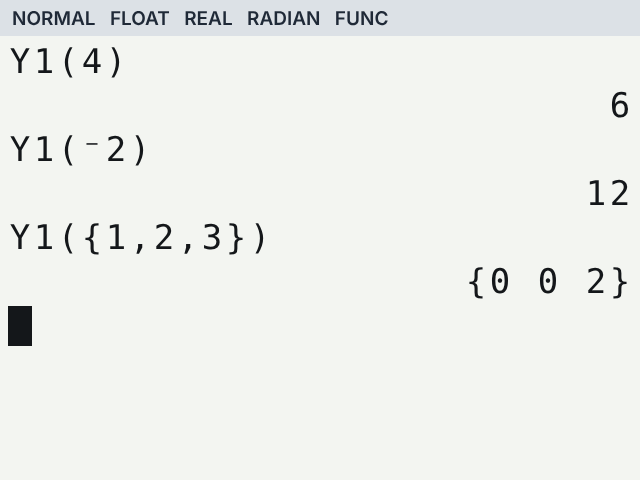
For the next value, press 2nd ENTER to bring back Y1(4), change the 4 and press ENTER again. For f(−2), use the (−) key: Y1(−2) gives 12.
Shortcut on the TI-84 Plus CE Press ALPHA TRACE to open the YVAR shortcut menu and pick Y1 straight away.
Way 2: Evaluate a Function With the Table
The table is the best choice when you need several values in a row, such as f(4), f(5) and f(6).
Open TABLE SETUP
Press 2nd WINDOW (TBLSET).
Set the start
Type 4 for TblStart and keep ΔTbl at 1, so the table goes up by 1 each row.
Open the table
Press 2nd GRAPH. The first row shows x = 4 and Y1 = 6, then 5 gives 12 and 6 gives 20.
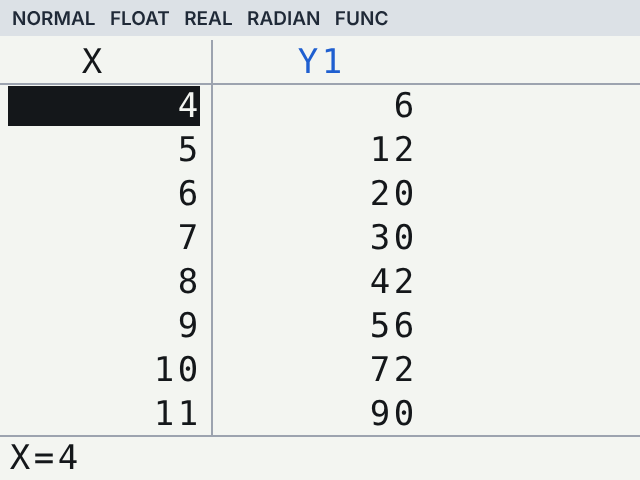
On a handheld TI-84 you can also set Indpnt to Ask in TABLE SETUP. Then the table stays empty and you type any x you like, one at a time.
Way 3: Evaluate on the Graph With CALC Value
Use this when you also want to see the point on the graph, for example to check your answer visually.
Graph the function
Press ZOOM 6 for the standard window.
Choose value
Press 2nd TRACE to open CALC and press 1 for value.
Type x
The bottom of the screen shows X=. Type 4 and press ENTER.
Read the result
The cursor jumps to the point and the screen shows X=4 and Y=6.
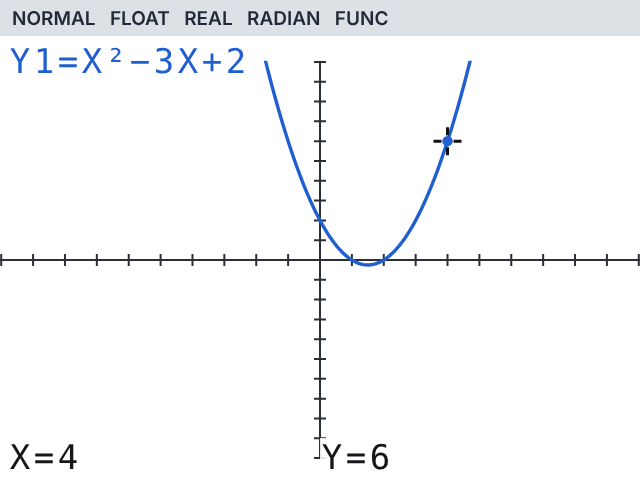
The x you type must be between Xmin and Xmax. If it is outside the window, the TI-84 shows ERR:INVALID. Widen the window in WINDOW and try again.
Which Way Is Best?
| Way | Best for | Limits |
|---|---|---|
| Y1( ) on the home screen | One value, decimals, negatives, several values at once | None |
| Table | A run of values, such as f(1) to f(10) | Steps by ΔTbl unless you use Ask |
| CALC value | Seeing the point on the graph | x must be inside the window |
Composite Functions, Lists and Quick Checks
Composite function f(g(x))
Put f in Y1 and g in Y2, then type Y1(Y2(2)). With g(x) = 2x − 1, Y2(2) is 3 and Y1(3) is 2.
Y1(Y2(2))
Several inputs at once
Use braces from 2nd ( and 2nd ): Y1({1,2,3}) returns {0 0 2}.
Y1({1,2,3})
Without using Y=
Store the input first: 4 STO→ X,T,θ,n ENTER. Then type X²−3X+2 and press ENTER to get 6.
4→X
Common Mistakes When Evaluating Functions on a TI-84
| Mistake | What happens | Fix |
|---|---|---|
| Typing the letter Y with ALPHA instead of Y1 from VARS | Y(4) multiplies the variable Y by 4 and gives a wrong number | Always paste Y1 from VARS ▶ 1 |
| Using − for a negative input | ERR:SYNTAX | Use (−), as in Y1(−2) |
| Function typed in Y2 but calling Y1 | Wrong or empty answer | Call the Y number that holds your function |
| CALC value outside the window | ERR:INVALID | Change Xmin and Xmax, or use Y1( ) instead |
Practise Evaluating Functions Online
All three ways work on our free TI-84 calculator online, using the same keys. Need help with other problems? See how to solve inequalities on a TI-84 next.
Frequently asked questions
How do I find f(x) on a TI-84?
Type the function in Y1, go to the home screen, paste Y1 from VARS ▶ 1 1, add the x value in parentheses and press ENTER.
Where is Y1 on the TI-84 home screen?
Press VARS, move right to Y-VARS, choose 1: Function and then 1: Y1. On a TI-84 Plus CE, ALPHA TRACE is a quicker shortcut.
Can a TI-84 evaluate a function at a negative number?
Yes. Use the (−) key inside the parentheses, for example Y1(−2). The subtraction key gives a syntax error there.
How do I evaluate f(g(x)) on a TI-84?
Store f in Y1 and g in Y2, then type Y1(Y2(x)) with your number in place of x and press ENTER.
Why does CALC value give ERR:INVALID?
The x value you typed is outside the current window. Make the window wider or evaluate on the home screen with Y1( ) instead.